

The Magical Wand of Adobe Illustrator: The Pen Tool!
Hey there, design wizards and pixel sorcerers! 🧙♂️✨ Are you ready to unlock the secrets of Adobe Illustrator's most enigmatic and versatile tool? Drumroll, please... 🥁 Introducing the one, the only, legendary—Pen Tool! 🖋️
Yes, my friends, the Pen Tool is the Swiss Army knife of vector graphics. It's like the Dumbledore of Adobe Illustrator, wise and capable of almost anything. If Illustrator were a rock band, the Pen Tool would be the lead guitarist, shredding solos and stealing the spotlight. 🎸
## Why the Pen Tool is Your New BFF 🤗
First off, why should you even care about the Pen Tool? Simple. It's the key to creating custom shapes, tracing objects, and basically doing anything that requires more finesse than a toddler with a crayon. 🖍️
Do you want to draw a perfect curve? Pen Tool's got your back. Need to trace over an image with the precision of a surgeon? Call Dr. Pen Tool, stat! 🏥
## The Basics: Point, Click, Drag, Repeat 🔄
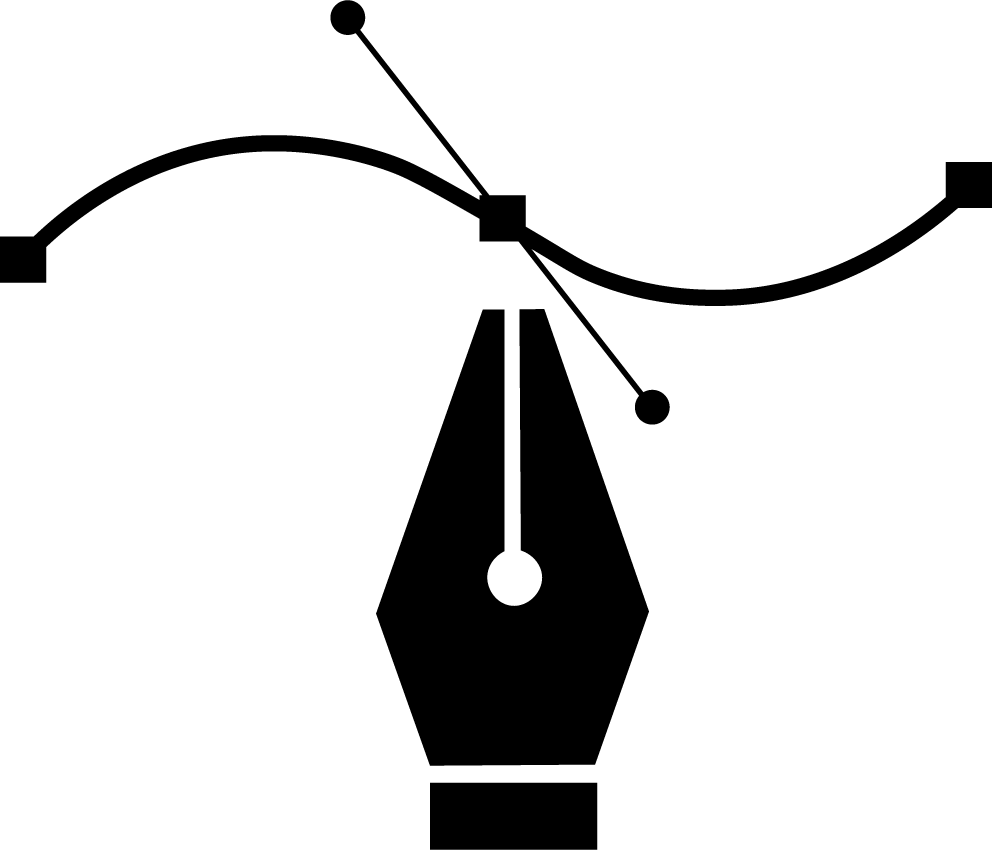
Alright, let's get down to the nitty-gritty. The Pen Tool is all about points and paths. You click to create anchor points and then drag to determine the direction and length of your curves. It's like connect-the-dots but for grown-ups!
1. **Anchor Points**: These are the "corners" of your path. Think of them as the stepping stones across the river of your design.
2. **Paths**: These are the lines connecting those anchor points. They can be straight, curvy, or as twisted as a soap opera plotline.
2. **Paths**: These are the lines connecting those anchor points. They can be straight, curvy, or as twisted as a soap opera plotline.
## The Pen Tool's Secret Moves 🤫
### The Straight and Narrow
Click and release to make straight lines. It's like playing digital hopscotch, but way cooler.
Click and release to make straight lines. It's like playing digital hopscotch, but way cooler.
### Curves for Days
Click, hold, and drag to create curves. The longer you drag, the more voluptuous your curve. Va-va-voom! 🌹
Click, hold, and drag to create curves. The longer you drag, the more voluptuous your curve. Va-va-voom! 🌹
### Changing Directions
To change the direction of a curve, simply hold down the 'Alt' key (or 'Option' on a Mac) and drag the handle around. It's like turning the steering wheel on your path.
To change the direction of a curve, simply hold down the 'Alt' key (or 'Option' on a Mac) and drag the handle around. It's like turning the steering wheel on your path.
### Closing the Loop
To close a path, just click on your starting point. Boom! You've just made a shape, you geometric genius, you!
To close a path, just click on your starting point. Boom! You've just made a shape, you geometric genius, you!
## Troubleshooting: When the Pen Tool Goes Rogue 🚨
Sometimes the Pen Tool has a mind of its own. It's like a rebellious teenager who refuses to clean their room. Here are some quick fixes:
1. **Oops, Wrong Point!**: Hit Ctrl+Z (Cmd+Z on Mac) to undo. The Pen Tool is forgiving, like a grandma who still gives you candy even when you break her vase.
2. **Adjusting Curves**: Use the Direct Selection Tool (the white arrow) to tweak your anchor points post-creation. Because nobody's perfect, not even the Pen Tool.
2. **Adjusting Curves**: Use the Direct Selection Tool (the white arrow) to tweak your anchor points post-creation. Because nobody's perfect, not even the Pen Tool.
## The Pen is Mightier... 🗡️
In the realm of Adobe Illustrator, the Pen Tool reigns supreme. It's your sword in the stone, your Excalibur. So go forth, young squire, and wield your Pen Tool with valor and creativity! 🛡️
And remember, the Pen Tool is only as good as the hand that wields it. So practice, practice, practice! Before you know it, you'll be the Merlin of modern design. 🧙♂️
Until next time, keep those pixels popping and those vectors vecting! 🎉
Peace, love, and anchor points,
Your Friendly Neighborhood Design Guru 🌈✌️
Your Friendly Neighborhood Design Guru 🌈✌️